Quick answer: a private screenshot is one that stays on your device until you decide to share it, shows only what you meant to show, and, when you do share it, can be opened only by the people you choose. Many screenshot tools fail the first test by uploading every capture automatically. You can check a tool yourself in a few minutes: look at its permissions, watch whether anything uploads while you capture and edit, test that its blur can't be undone, and find out who holds the key to a shared link. Screshot is a private screenshot tool for Chrome built around these checks.
Screenshots carry more than people think: a customer's email in a support ticket, an API key in a terminal, a colleague's message in the corner of a chat window. Once a screenshot leaves your computer, it can be copied, forwarded, indexed or kept in a backup you will never see. "Private" is the promise that this only happens when you decide, and only to the people you pick.
This guide explains what a private screenshot is, where screenshots usually leak, six checks that tell you whether a tool keeps its promise, how to take a private screenshot in Chrome, and where any tool's privacy ends.
What "private screenshot" means
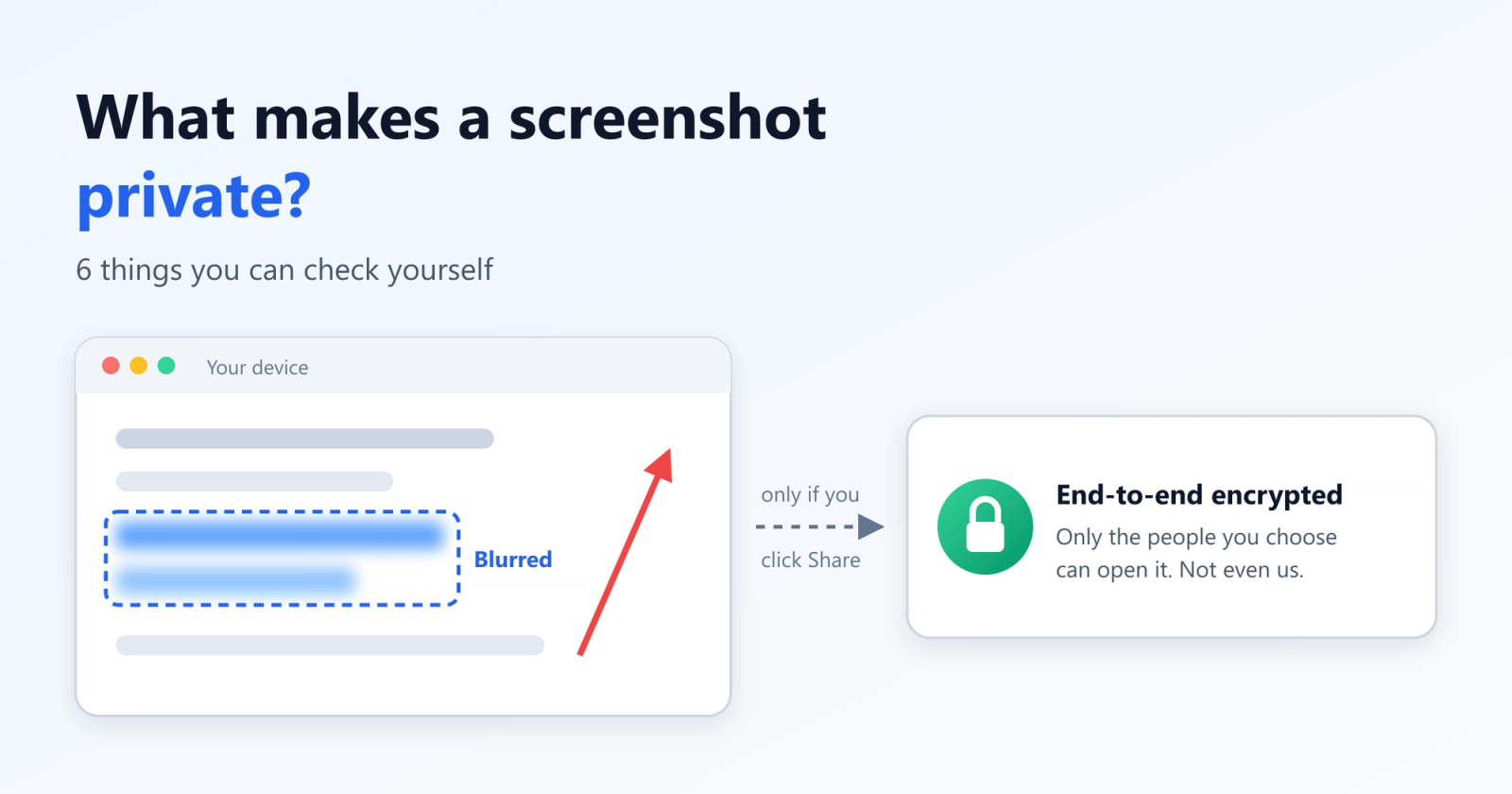
A screenshot is private when three things are true:
- It stays on your device by default. Capturing, cropping, blurring and annotating happen on your computer. Nothing is uploaded until you choose to share that one image.
- It shows only what's needed. Sensitive details are removed before the image leaves your screen, in a way that can't be reversed.
- Sharing is your choice, and limited to the people you choose. When you send it, the service in the middle can't read it, and you can take access back later.
Notice what this definition does not say. A private screenshot can still be shared; privacy is about who decides and who can read it, not about never sending anything.
Where screenshots leak
Most leaks are not hacks. They are defaults:
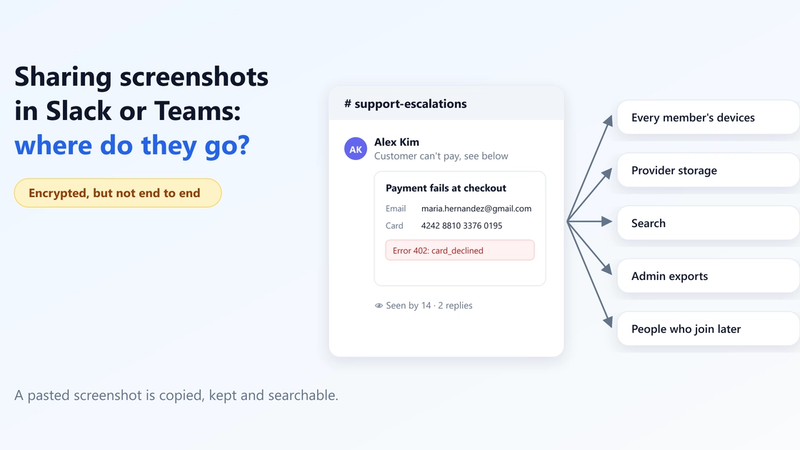
- Automatic upload. Some tools send every capture to their cloud the moment you take it, to give you a link "in case you need it". Your screenshot now lives on someone else's server, whether you share it or not.
- Sync folders. Screenshots saved to a synced desktop or documents folder are copied to cloud storage without anyone deciding to share them.
- Plain share links. A link that anyone can open, stored readably on the provider's server, is as private as every place it is pasted.
- The unblurred original. If the blur is a layer on top of the image, or the tool keeps the original next to the edited copy, the hidden details may still be recoverable. Our guide to blurring sensitive info so it can't be recovered explains how this happens.
- Too much in the frame. A full-window capture shows tabs, notifications and names you never meant to include. See 6 places sensitive data hides in a screenshot.
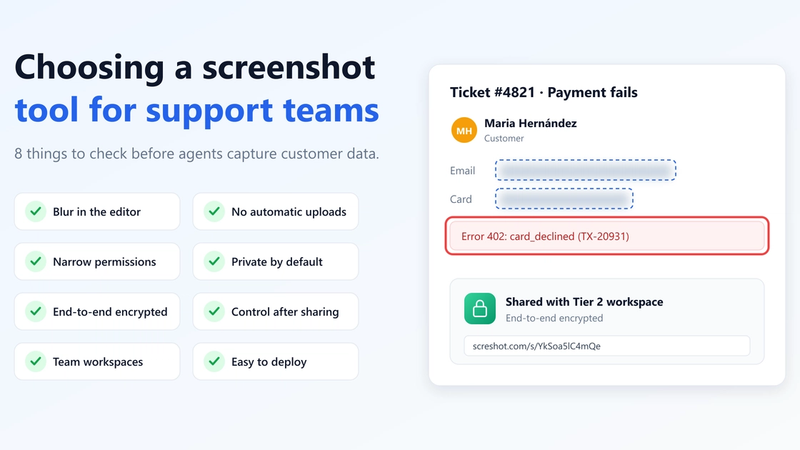
6 checks for a private screenshot tool
You don't have to take a vendor's word for any of these. Each one can be checked in a few minutes.
1. What permissions does it ask for?
Open the extension's details page in Chrome (chrome://extensions, then Details). A screenshot tool needs to capture the tab you are looking at when you ask it to. It does not need to "read and change all your data on all websites". The fewer permissions, the less it could do even if it wanted to.
Screshot asks for five permissions (activeTab, scripting, contextMenus, storage, identity), none of which shows a warning when you install it, and none of which lets it read every website you visit. Each one is explained on the [security page](https://www.screshot.com/security). For what each Chrome warning really means, see Chrome extension permissions explained.
2. Does anything upload while you capture and edit?
Open Chrome's developer tools (F12), go to the Network tab, then take a screenshot, crop it, blur something and download it. A private screenshot tool sends nothing while you do this. If you see an image being uploaded before you clicked anything like Share, the tool is uploading by default.
3. Where does editing happen?
If the editor opens on a website, your screenshot had to get there first. If it opens in a page packaged inside the extension, on your computer, the image never needs to leave. In Screshot, capture, blur, annotate, copy and download all happen in the browser, with no account.
4. Is the blur permanent?
Blur something, download the image and open the file in another program. Try to recover the hidden area: remove layers, raise the brightness, zoom in. A safe blur rewrites the pixels themselves, so the file contains nothing to recover. In Screshot, the blur is written into the pixels, and only the cropped, blurred image is ever shared, never the original.
5. Who holds the key when you share?
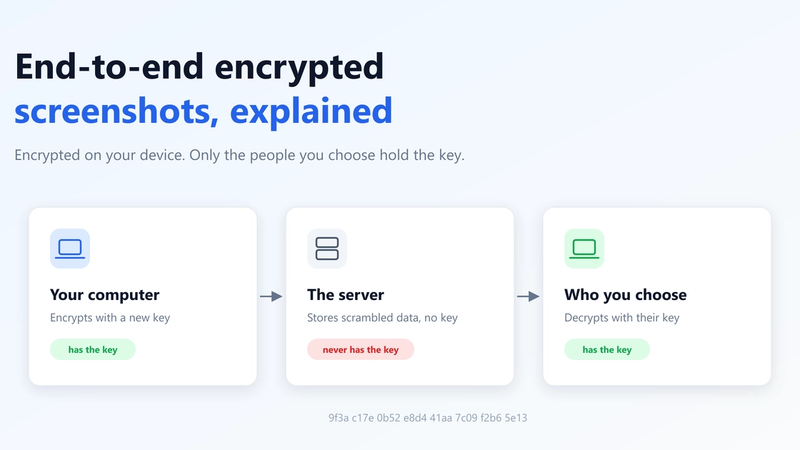
"Encrypted" can mean very different things. Encrypted in transit and at rest means the provider holds the keys and can read your image. End-to-end encrypted means the image is encrypted on your device before upload, with a key the provider never receives, so only the people you share with can open it. End-to-end encrypted screenshots, explained covers the difference in detail.
When you click Share in Screshot, each screenshot gets its own AES-256-GCM key, created in your browser. Screshot stores only the encrypted file. Every new link starts as "Only me"; you choose who else can open it.
6. What does the server still see?
No sharing service can be completely blind: it has to know which account a file belongs to and who may open it. A trustworthy tool tells you exactly what it can see. For Screshot, that's your account, the screenshot's title, size and date, the people you invited and how many times it was viewed. Not the image, and not your comments, which are also end-to-end encrypted.
How to take a private screenshot in Chrome
With Screshot, it takes four steps:
1. Install and pin Screshot from the Chrome Web Store. No account is needed to capture and edit.
2. Capture the visible area or a full page with one click or Ctrl+Shift+S, then drag to keep only what matters.
3. Blur and annotate in the same editor: blur the email, the card number or the token; add an arrow or a box where it matters.
4. Copy or download it, and it never leaves your computer. Or click Share for an end-to-end encrypted link, and choose who can open it: Only me, Invited people, your Workspace, or Anyone with the link.
The step-by-step guide, with every keyboard shortcut, is on How to use Screshot.
Where privacy ends
Being honest about limits is part of privacy. No screenshot tool, including Screshot, can:
- Stop the people you share with from capturing their own screen. Once someone can see an image, they can photograph it. Share sensitive screenshots only with people you trust.
- Make "Anyone with the link" private from people. In Screshot, the key for this mode travels in the link after the #, which browsers never send to the server, so Screshot can't read it. But anyone you give the link to can open it, and so can anyone they forward it to. For sensitive images, invite named people instead.
- Recover your screenshots if you lose every key. With end-to-end encryption, the provider can't reset your key. Keep your recovery code safe, or register a passkey on more than one device.
- Hide the metadata listed in check 6.
Checklist for every private screenshot
- Captured only the area that's needed
- Blurred names, emails, numbers, tokens and faces that aren't needed
- Copied or downloaded it if it doesn't need to leave your computer
- If shared: an end-to-end encrypted link, opened only by the people who need it
- Access removed, or the screenshot deleted, when it's no longer needed
FAQ
What is a private screenshot?
A screenshot that stays on your device until you decide to share it, shows only what you meant to show, and can be opened only by the people you choose when you do share it.
Is a screenshot private by default on Windows, macOS or Chrome?
Taking it is: the image is saved on your computer. It stops being private when a tool or a sync folder uploads it automatically, or when it's shared through a service that can read it.
Do I need an account to take a private screenshot with Screshot?
No. Capturing, blurring, annotating, copying and downloading work without an account. You sign in only to share a link, so your keys can be kept safely and you can choose who opens it.
Can Screshot see my screenshots?
Not the ones you keep on your device, because they never leave it. Not the ones you share either, because they are encrypted on your device and Screshot never holds the key. It does see the metadata listed above.
Is a blurred screenshot safe to share?
Only if the blur changed the pixels themselves. Test it: download the image and try to recover the hidden area in another program.
Sources
- Chrome for Developers: Declare permissions
- MDN: SubtleCrypto.encrypt() (Web Crypto API)
- MDN: URI fragment
- Screshot security overview

Written by
Screshot TeamProduct & security team
The team that builds Screshot, the private screenshot tool for Chrome. We write about keeping customer data out of screenshots, rolling out tools across a company, and getting work done faster with your screen.
Keep customer data out of your screenshots
Screshot captures a screen or a full page, blurs sensitive details and annotates, all on your device. Free for every team.