Quick answer: to redact a screenshot, leave the sensitive part out of the capture or crop it out. If it has to stay in the frame, cover it with a fully opaque shape, export a new image and open that file to check it. Snipping Tool on Windows 11 has Quick redact, and Preview on Mac can draw a filled shape. In Chrome on desktop, Screshot blurs and annotates in one editor, on your device.
A screenshot you send is a file, and files get forwarded. This guide shows which method to use, how to do it on Windows, on Mac and in Chrome, and how to check the result. Built-in tools are enough for many people, and we say where. Facts about other tools are as of November 2026.
What redacting a screenshot means
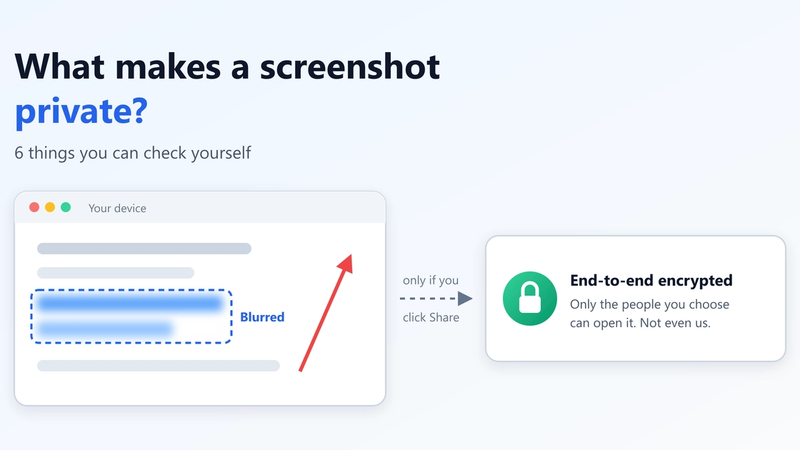
Redacting a screenshot means removing information from the image file, so that nobody who receives the file can read it. Hiding it on your screen is not enough. A cover that can be moved, a see-through marker or an untouched original can all bring it back.
Before you start, scan the whole image. Sensitive data often sits outside the field you noticed: see six places sensitive data hides.
Crop, cover, blur or pixelate: which to use
Work down this list and stop at the first method that fits.
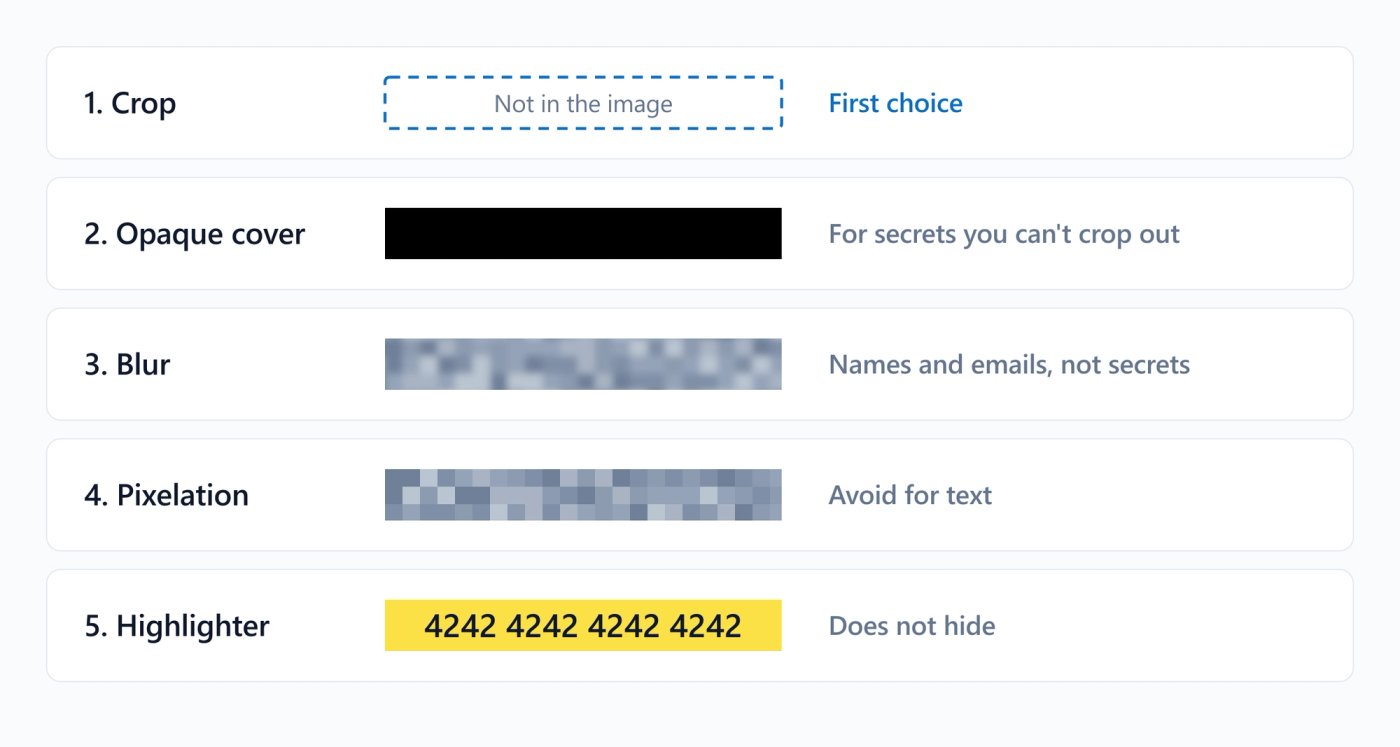
- Leave it out or crop it. The information is not in the new image at all. This is the first choice for anything that matters.
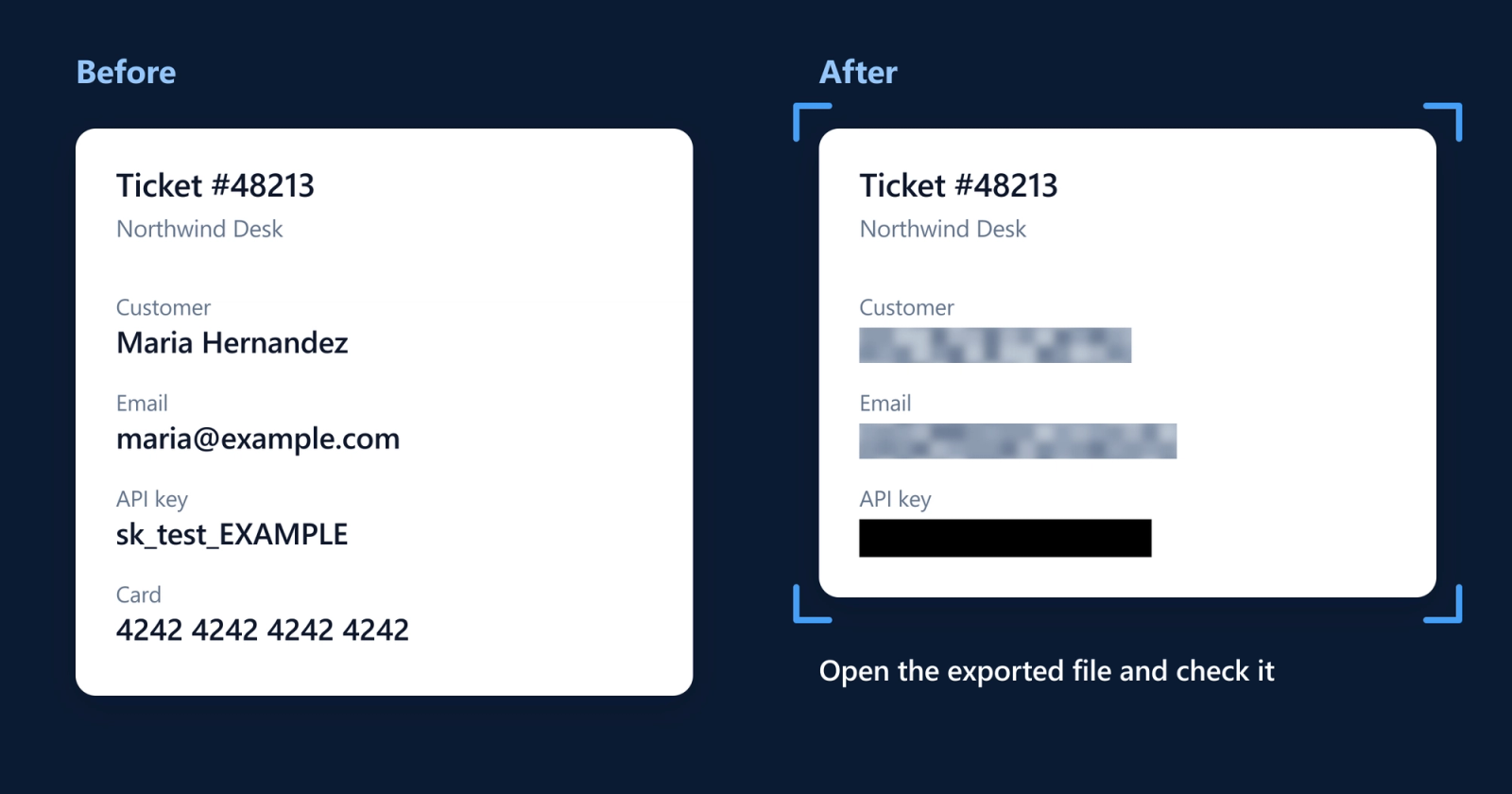
- Opaque cover. A solid shape replaces the text once it is flattened into an exported image. Use it for passwords, keys and card numbers you can't crop out.
- Blur. Fine detail is lost, but coarse averages stay in the image. Use it for names, emails and similar details in everyday screenshots, when it would do little harm if someone worked them out. For customer records, crop or cover.
- Pixelation. Text becomes blocks that can be compared against guesses. Avoid it for text.
- Highlighter. See-through ink leaves text readable. Use it to point at something, not to hide it.
When blur isn't enough
At normal text sizes, blur makes text hard for people to read. That suits a colleague's name in a bug report. It does not suit a password, API key or full card number.
The research explains why. In 2016, Hill and colleagues concluded that "mosaicing and blurring, despite their widespread usage, are not viable approaches for text redaction". Depix and Bishop Fox's Unredacter later recovered pixelated text. Those attacks have conditions: Unredacter needs the font and size, which the rest of a screenshot often reveals, and Depix needs a matching search image and fails after extra compression. Bishop Fox's advice is plain: "use black bars covering the whole text".
The same caution applies to our own blur. Screshot's blur has one fixed strength. It shrinks the selected area to coarse blocks and stretches it back, so fine detail is lost while coarse averages stay in the file. It is not proven against someone who knows the font and guesses candidates.
Our November 2026 tests showed both sides of that. We ran a copy of Screshot's blur code in a browser on every 4-digit number in Arial, as lossless images, using the same browser, font and blur box as the target. At 24 px, 88% of the numbers blurred to a unique result, and guessing and comparing found the right number about 85% of the time, even when we had to search for its sideways position. At 14 and 16 px, the first guess was right much less often (15 to 35% across two runs of 60 tries each), but the right number was in the top 10 of 10,000 candidates about four times in five. That was a lab test on short numbers in ideal conditions, not a real attack. We did not test compression, other fonts or long random keys. Blur is also weak on large text: a 72 px bold word stayed readable.
When blur does fit, see our guide to blurring details in a screenshot in Chrome.
How to redact a screenshot on Windows
Snipping Tool is the natural choice on Windows 11. It needs no install and it works for desktop apps. As of November 2026:
1. Capture only what you need. Snip the smallest area that does the job.
2. Open Text actions. Select Text actions on the snip. Microsoft says text recognition runs locally on your device.
3. Use Quick redact as a first pass. Microsoft lists two types: email addresses and phone numbers. Treat everything else as not covered.
4. Redact the rest by hand. Microsoft's 2023 announcement says you can select any text, right-click and choose Redact Text. Its current support page doesn't describe this step, so check the menu in your version.
5. Save a new file. Use Save as.
6. Open the exported file and check it before you send it. Microsoft doesn't say whether the bars are written into the pixels, so run the checklist below.
Then look in your Screenshots folder. Microsoft says a snip "is automatically saved to your Screenshots folder" on Windows 11, so an unredacted copy may be sitting there. Delete it if you don't need it. You can change this in Snipping Tool's settings.
How to redact a screenshot on Mac
Preview works for anything on your screen, with nothing to install. As of November 2026, Apple says supported Macs with macOS Tahoe 26 or later can choose the capture format: SDR uses PNG and HDR uses HEIF.
Apple's page on annotating images lists no redact tool. Preview's Redaction Selection is for PDF text. On a PNG, use a filled shape.
1. Work on a copy. Duplicate the file first. Apple says Preview periodically saves versions of images, and earlier ones can be restored.
2. Add a shape. Open the copy in Preview, show the Markup toolbar, choose a rectangle from the Shapes tool and drag it over the text.
3. Fill it. Use Fill Color to make the inside solid black, not just the outline.
4. Save it. Apple says "you can't edit, move, or delete the annotations after you save the image."
5. Open the saved file and check it before you send it. Apple doesn't say outright that the pixels under the shape are gone, so run the checklist below.
Then delete the original if you don't need it.
Why a black box can still fail
The file can undo good redaction. Two cases show how.
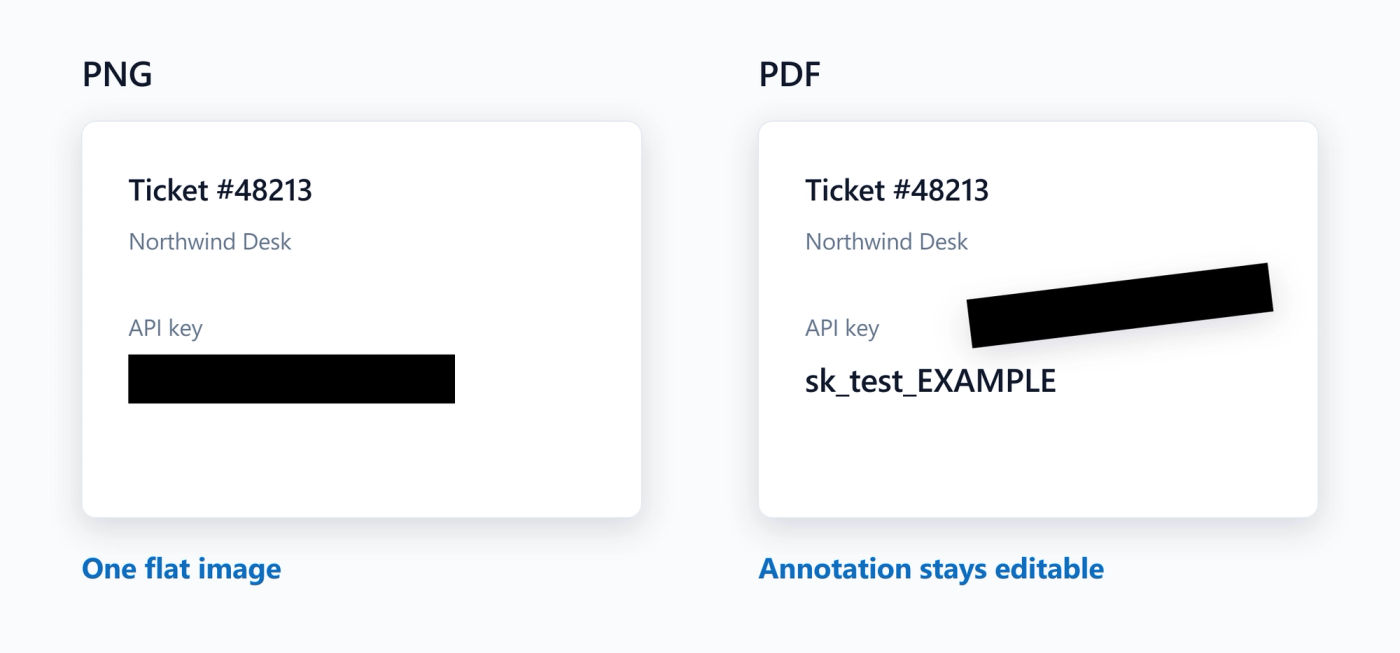
- PDFs can keep annotations editable. Apple says File > Save, Export and Export to PDF all keep PDF annotations editable, and that you can keep annotations editable on an image by converting it to PDF first and annotating that. Google's advice for documents is to "avoid placing black rectangles over text as a redaction method". Keep screenshots as PNG, and don't convert to PDF to redact.
- Cropped files have leaked too. In 2023, the aCropalypse bugs (CVE-2023-28303 in Snipping Tool, CVE-2023-21036 on Android) left original image data in some cropped files. On Windows, the trigger was saving a crop over the original. Microsoft shipped a fix through the Store. Keep your tools updated, and export a new file.
How to redact a screenshot in Chrome
You can capture a tab with Snipping Tool or Preview and follow the steps above. If you work in web apps every day, an extension puts the steps in one place.
Screshot is a free extension for Chrome on desktop. It has no dedicated black box tool. It also doesn't find sensitive data for you: you choose what to hide, by hand.
1. Capture. Open the page and press Ctrl+Shift+S (Mac: Cmd+Shift+S), or click the Screshot icon. The capture opens in a new tab. You can see or change your shortcut at chrome://extensions/shortcuts.
2. Select the area to keep. Drag to select, leaving passwords, keys and card numbers outside the selection. The toolbar appears after you select.
3. Blur everyday details. Choose Blur sensitive info and drag over names, emails and similar text.
4. Cover a secret you can't crop out. Use Color to pick black and choose Line. Keep the pointer on the image and scroll up until the Brush Size reading is taller than the text. Scrolling down makes it thinner. Hold Shift to keep the line level and draw one straight bar over the whole value.
5. Export. Choose Download PNG or Copy to clipboard.
6. Open the exported file and check it before you send it. If you copied, paste it somewhere private first, not into the chat you'll send it to, and inspect it there.
Add Screshot to Chrome for free
For Chrome on desktop. No account needed to capture, blur, copy or download.
After installing, pin Screshot, open the page you want to capture, press the shortcut and follow the steps above.
Know the limits first:
- Web pages only. Screshot captures web pages in a Chrome tab, not desktop apps. Chrome doesn't let extensions capture chrome:// pages or the Chrome Web Store.
- No editing on full-page captures. They have no crop, blur or annotation, and everything captured is in the file. Use a visible-area capture when you need to hide anything.
- Local until you share. Capturing, blurring, annotating, copying and downloading happen in your browser, with no upload and no account.
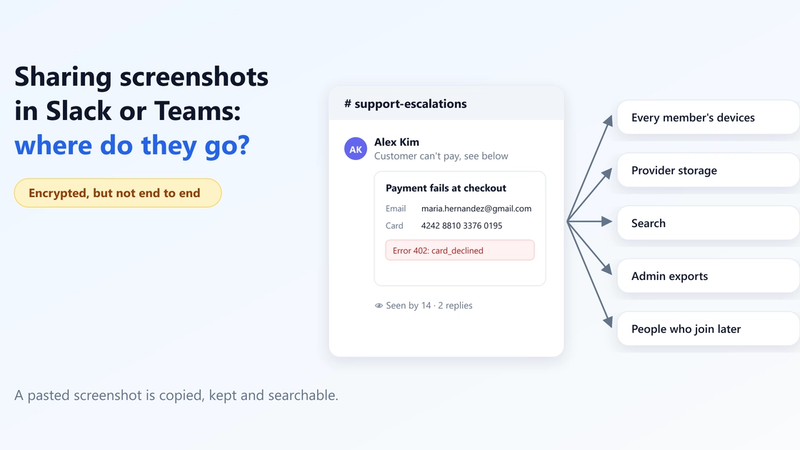
- Sharing is a separate step. Share needs a Google sign-in and turning on encryption, and the image is encrypted in your browser before upload. Screshot still sees metadata such as the name, size and dimensions, and anyone who can open the image can take their own screenshot. See how the encryption works and how to share a screenshot securely.
Which should you use?
- A desktop app on Windows. Use Snipping Tool. Screshot can't capture desktop apps.
- A desktop app on Mac. Use Preview with a filled shape.
- A one-off web page. Your built-in tool is fine.
- Web pages most days. Screshot keeps crop, blur and annotation in one editor.
- A password, key or card number. With any tool, leave it out or crop it. If you can't, use an opaque cover.
Redact web pages most days? Screshot fits. For a one-off, your built-in tool is fine.
Checklist before you send a redacted screenshot
Open the exported file and check it before you send it, whichever tool made it.
- Opened the exported file in a different app
- Zoomed to 400% and read nothing that should be hidden
- Tried to select the hidden text and could not
- Tried to move or delete each cover and could not
- Raised the brightness and saw nothing under the covers
- Confirmed it is an image file, not a PDF
- Passwords, keys and full card numbers are cropped out or under an opaque cover, not blurred
- Checked the edges: anything visible in the image is in the file
- Deleted the unredacted original, or stored it safely
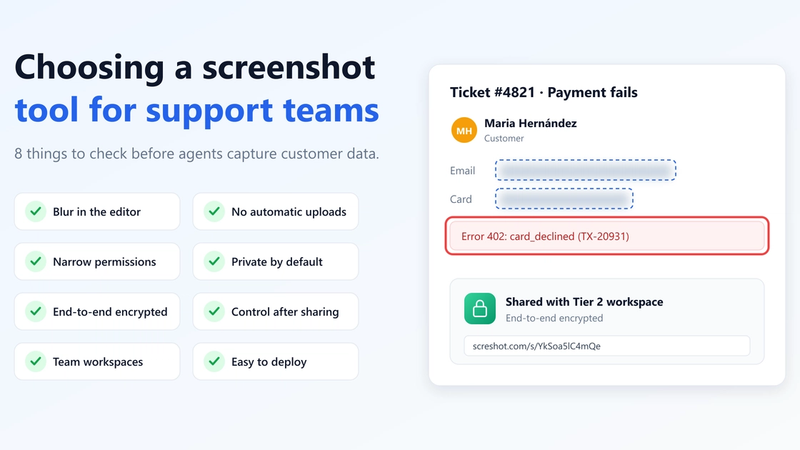
If your team handles customer data, see screenshots, PII and GDPR in support tickets.
FAQ
Is blurring a screenshot enough?
Not for secrets. Researchers called mosaicing and blurring "not viable" for text redaction, and Bishop Fox recommends black bars. Blur suits names, emails and similar details in everyday screenshots, when it would do little harm if someone worked them out.
Can pixelated or blurred text be recovered?
It can, under conditions. Depix and Unredacter recovered pixelated text when details such as the font and size were known. A 2016 paper reported the same risk for blurring. Results vary, so don't rely on either for secrets.
Can someone remove a black box from a screenshot?
Yes, if it is still an editable object, such as a PDF annotation. In a flattened PNG, the box is part of the image, with no object to move. Test your own file with the checklist above.
Does Snipping Tool redact everything?
No. As of November 2026, Microsoft lists email addresses and phone numbers for Quick redact. For other text, Microsoft's 2023 announcement describes a manual Redact Text option.
Does Screshot have a redact tool?
No. It has no black box tool and no automatic detection. Crop out what you can. The closest thing to a solid cover is a thick black Line.
Sources
All accessed 6 November 2026.
- Microsoft Support: Use Snipping Tool to capture screenshots
- Windows Insider Blog, 14 September 2023: New updates for Snipping Tool
- Apple Support: Take a screenshot on Mac
- Apple: Annotate an image in Preview
- Apple: Annotate a PDF in Preview
- Apple: Revert changes in Preview
- Hill, Zhou, Saul and Shacham, PoPETs 2016
- Bishop Fox: Unredacter, February 2022
- Depix proof of concept
- Google Search Central: Keep redacted information out of Search
- CVE-2023-28303
- CVE-2023-21036
- BleepingComputer: Microsoft pushes OOB security updates for Windows Snipping Tool flaw
Written by
Screshot TeamProduct & security team
The team that builds Screshot, the private screenshot tool for Chrome. We write about keeping customer data out of screenshots, rolling out tools across a company, and getting work done faster with your screen.
Keep customer data out of your screenshots
Screshot captures what's on your screen, blurs sensitive details and annotates, all on your device. Free for every team.